1. Open up the page www.wmplugins.com and browse through all the sections to find downloads that interest you. In this example we choose PixelFusion that enhances the overall image quality of multimedia videos and movies in Windows Media Player. 2. Double-click on the downloaded file PixelFusionWMP122.exe (e.g.). The setup wizards welcomes you to the procedure - highlight I accept the agreement and click Next - now hit Next whenever asked to. 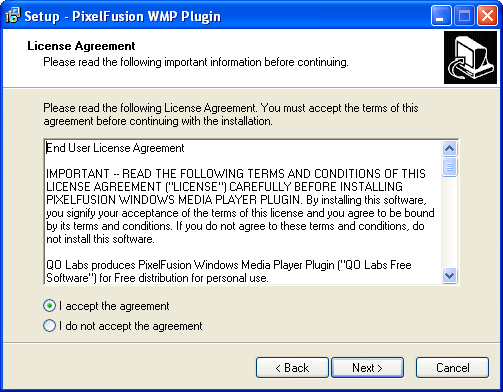 3. Open up Windows Media Player and play a video file. You should see improvements in terms of quality already - you can enable or disable the plug-in by right-clicking on the Media Player interface and selecting Tools/Plug-ins/PixelFusion Plugin. If you click on Options... instead of PixelFusionPlugin you may find the PixelFusion Plugin entry in the Video DSP section. Click on the Properties button and select your preferred values.  Remember, the installation of PixelFusion is just an example of how Plug-ins and their configuration work. You can apply this procedure to most Plug-Ins that are currently available for Windows Media Player 10. |