


Quick overview:
Many Windows users keep asking themselves why the great 3D game, after a short interruption (no input), runs so "jerky, complex CAD programs come to a standstill or even just the normal Office starts to strike! We have found the solution: Windows idle time activities must be brought forward!
You can use a command to force Windows to immediately run all background processes that it would normally run in a few minutes. This includes, for example, the often quoted Boot defragmentation and much more.
In the case of a 3D game or long computing tasks, this process would intervene unnecessarily if you left the computer for several minutes - this throttles the computing power in this time frame immensely, which is of course not what the inventor intended: Become a Windows tuning pro and trick XP at this point!
For example, you can avoid the annoying hard disk chattering that often occurs in the Forum is described.
How do you do it? We'll show you: Open "Start/Execute" and then type in this line:
Rundll32.exe advapi32.dll,ProcessIdleTasks
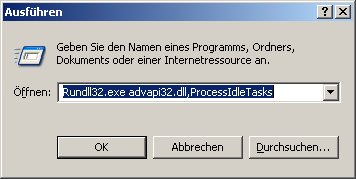
After you have confirmed this line with Enter or the OK-button, the optimization will start. We have tested the optimization on various PCs. Of course, this takes some time, but afterwards Windows is completely free for other jobs. We experienced optimization times of 10 seconds to 1 minute - which in our opinion is completely justified!
From now on, Windows is ready to run your application with all its computing power without interruption!
A little tip on the side: Copy this command into a text file and save it under the name Bring forward idle time activity.bat. Now move this file to the autostart folder in the start menu. The activity will now be executed at system startup!
Note from the webmaster: A big thank you goes to Kay Giza alias Meverick20 from the Windows-Tweaks forum for this tip!

On Windows Tweaks you will find time-saving tech guides for PC, software & Microsoft. For a stress-free digital everyday life. Already We have been tweaking Windows since 1998 and just don't stop!
