


Quick overview:
It’s not just the hard drive that can become cluttered with junk: The Windows registry should be part of your regular cleaning routine, especially here where faulty uninstall routines, unnecessary installed tools/applications/games, or unnecessary Windows keys can be particularly detrimental to speed. We’ve prepared three tools to help you find orphaned and unnecessary registry keys:
- Microsoft RegClean 4.1a (Programmed by Microsoft, but abandoned)
- RegSupreme
- JV16-PowerTools
(Please download these tools now)
1. With the Microsoft RegClean 4.1a Remove basic errors and debris: Start MS RC 4.1 and wait until the check has been completed. Then click on Fix Errorsto complete the process - unfortunately no information is given as to what was changed, but our tests showed that some keys were changed and deleted.
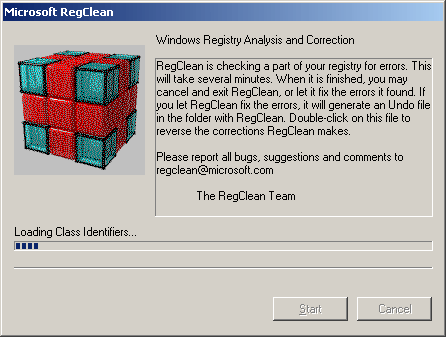
Even on our Windows Tweaks test PC (Windows Server 2003 with the following software: Nvidia driver, 2 benchmarks and 3 games) 65 values were deleted. On our main computer, as many as 157 (!) entries were deleted.
2. Useless keys with the professional tool RegSupreme delete: Open RegSupreme and select the most thorough method (Extra Deep) to analyze the registration. Don't worry: this took us 32 seconds!
Now click on Select/All and then to Fix. A dialog box appears asking you to enter the name of the registry backup. Now, in our case, 989 unnecessary entries are deleted.
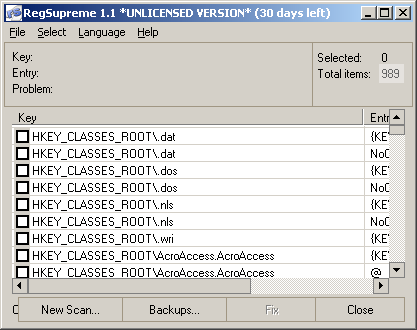
You can then use Backups... undo the changes at any time!
3. For die-hard enthusiasts: Purge the registry piece by piece with the JV16 PowerTools!
After installing the PowerTools, you should start directly with the Registry tools-section. Below are the settings from our first sub-category Registry Manager (first symbol) is explained:
Installed Software: I recommend removing all software components that you no longer use here. In our case, we found and destroyed 3-4 orphaned entries (such as from the Flash Player).
Starting Programs: Basically, this is what is done behind my Windows Tweaks article on turning off hidden auto-start programs. However, the programs are not deactivated; their entries are completely deleted—thanks to the JV16 backup, that is not a problem. In the example, I removed all entries!
Uninstall Menu: Those who no longer have the comfort of System control/software to delete/modify its programs, you can delete all entries. From now on, you must either use the installation CD or the program directories (uninstall.exe etc.) to uninstall/change your applications.
Registered File Types: Those who have plenty of time can compare the list with the changes made here (Part III), and thus can also remove the complete remaining copies of the deleted file types.
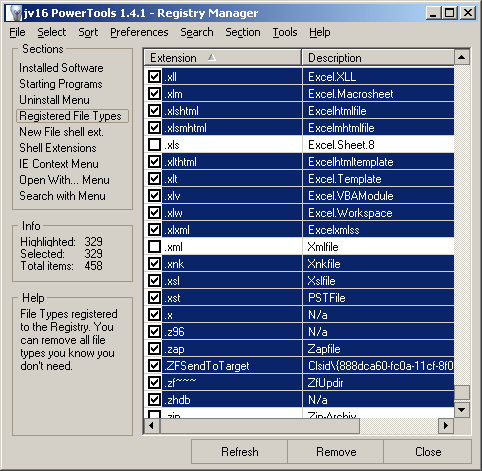
In my example, I was able to remove 329 of 458 file types, as the rest were not needed by my applications or for my use at all. If error messages appear after a restart, it is advisable to find out which file type is missing and restore it. For example, I accidentally selected the .scf file that is responsible for the Show desktop icon in the quick launch bar during the test. One click on Backup in the JV16 PowerTools and I was able to select which value should be restored.
Warning: Registered File Types is a dangerous tool. You need to know exactly what you are doing when you delete file types - in many cases you simply cannot do it, which is why in case of doubt, one thing is certain: Stay away from it, because it is not worth it. On the other hand, with a lot of caution and knowledge, you can also achieve a lot, because many tools leave your file types behind even after deinstallation.
New File Shell Extension: Here you will find the entries that are available via Desktop > Right click > New can be reached. If you do not need them, you will save some registry space (which is not significant).
Shell Extensions: The operations that link one (or more) programs to a file type are described here. For example, a JPG file can be opened or printed directly. Scroll once in the list to the entries jpegfile and look at the following columns. Once Open is listed as a command and the next entry Print!
As with Registered File Types because hands off is a good motto if you are not sure.
IE Context Menu: The context menu (appears when right-clicking) of Internet Explorer contains some functions that are added by applications such as Office. For example, it is possible to export the contents of a page to an Excel spreadsheet with a single click! If you don't need these features: Delete!
Now switch to the Registry Cleaner and leave all settings to default and wait some time (2-3 minutes at most) until the entire registry has been scanned for residual traces. Remove these now!
I won't go into the remaining settings any further, as these are already covered (much more extensively) by other Windows tweaks tips or are less relevant to the topic of system tuning. You can now close JV16-PowerTools and restart the PC: After restarting, you should test all programs and, if errors occur, use the JV16 backup tool. I hope that this tip has now lightened your system by a few entries and improved the performance somewhat (which was indeed the case with my test technicians)!
NOTE FOR NEW PUBLICATION: This article was produced by Sandro Villinger and comes from the Windows Tweaks archive, which has been built up since the late 1990s.

On Windows Tweaks you will find time-saving tech guides for PC, software & Microsoft. For a stress-free digital everyday life. Already We have been tweaking Windows since 1998 and just don't stop!

 Deutsch
 English