


Quick overview:
Many administrators have to keep all users away from functions, programs and data on a computer and restrict them to the area assigned to them. In the other articles on Windows security, you have already learned how to lock system control elements and many other desktop functions, but Internet Explorer, which users should not usually use while working, remains unprotected. Windows Tweaks has discovered new policies (so-called rights assignments) for Internet Explorer 6.0, which you can here get. The first two steps explain how to get to the point where you can apply the policies, while from here on you learn about all the secret security settings and how to apply them.
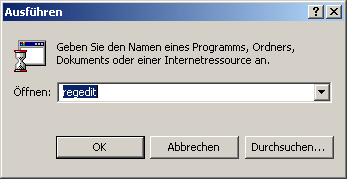
1. Click in succession on Start/Execute and carry regedit in the command line that appears in order to set the Windows Registry Editor to start.
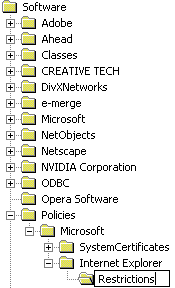
2. Now navigate through the keys HKEY_CURRENT_USER\Software\ Policies\Microsoft\Internet Explorer\Restrictions. In some cases, this path is not complete, which is why you have to select it via New/key must be reconstructed as shown below.
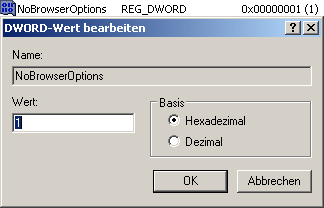
3. Now right-click in the right-hand pane and select New/DWORD Value. You give this self-created value the name NoBrowserOptionswhich means that access to the options that you would normally have under Extras/Internet options is locked. For this to take effect, you must double-click on this entry and enter a 1 write in.
Instead of the NoBrowserOptions value, the following other function restrictions are also possible:
NoFindFiles: The Internet Explorer search function is being retired.
NoFileOpen: Switches off the open dialog that appears when you press CTRL+L (or O) or click on "File/Open".
NoFileNew: The "File/New/Window" entry is also blocked from now on so that you cannot make a new window appear.
NoBrowserClose: This will turn you into a permanent surfer, because you can no longer close Internet Explorer.
NoBrowserContextMenu: Disables the entire context menu that appears when you right-click in Internet Explorer.
NoBrowserSaveAs: From now on, you are no longer permitted to save Internet pages to your hard disk.
NoSelectDownloadDir: In future, you will no longer be asked where you want to download the files to. The transfer will start immediately.
NoTheaterMode: Switches off the full-screen mode of Internet Explorer, which you can access with F11.
NoFavorites: Causes the favorites to be completely blocked.
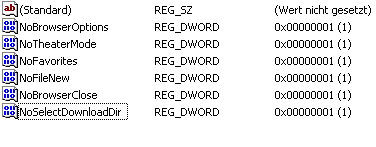
This is what your Windows registry looks like after you have used, for example, 6 of the above commands.
NOTE FOR NEW PUBLICATION: This article was produced by Sandro Villinger and comes from the Windows Tweaks archive, which has been built up since the late 1990s.

On Windows Tweaks you will find time-saving tech guides for PC, software & Microsoft. For a stress-free digital everyday life. Already We have been tweaking Windows since 1998 and just don't stop!
