


Quick overview:
The most important control center of Windows is the Control Panel, from which you can customize the computer as you see fit. Unfortunately, especially on computers with several users, people who have no idea what they are doing often dare to use these functions.
For this reason, it is advisable to seal off or block off parts of it.
For each tip, there is a single step that you must perform beforehand:
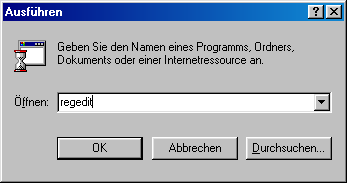
1. Click in succession on Start/Execute and type regedit in. The registry editor appears and you will see a directory structure similar to Explorer.
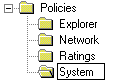
2. Double-click to navigate through the keys one after the other HKEY_LOCAL_MACHINE\Software\Microsoft\Windows\CurrentVersion\Policies. This last Policies Order should contain the subfolder System which you select.
If this is not available, select Policies and click on it with the right mouse button. Select New/key and baptize it with the name System.
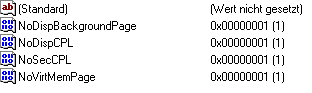
3. Now switch to Systemso that you can see its contents. The right-hand pane now contains all the values described below. Here you can see an example:
Locking the changing of the virtual working memory
The Swap file of Windows can be protected against unauthorized access by not allowing changes in the first place.
If you open the right-hand pane of Systemunder the registry path mentioned above, and then click New/DWORD Value a new value appears, which you can set to the name NoVirtMemPage baptize. Now double-click on this value and enter a 1 in the command line. As soon as the value has been created, Windows can no longer be shut down.
Locking the hardware profiles
If you right-click on My Computer and select Properties, you will see the Hardware Profiles tab with which you can load several different configurations. It is possible to deactivate this function.
Click in the right-hand pane and select New/DWORD Value. You can now call this NoConfigPage and double-click on it. After you have 1 you will not be able to use the printer setup wizard.
Paralyze the complete system control
If you want to completely block access to the Windows control center, you must follow the instructions below...
Create via New/DWORD Value in the right-hand pane a value which you NoControlPanel and in which, after double-clicking on it, you can call up a 1 enter.
Switch off the user configuration
In the Control Panel, you will find the Users icon with which it is possible to create users and passwords. You can easily prevent this configuration...
If you open the right-hand pane of Systemunder the registry path mentioned above, and then click New/DWORD Value a new value appears, which you can set to the name NoSecCPL baptize. Now double-click on this value and enter a 1 in. Once the value has been created, Windows can no longer be shut down.
Save the display properties completely
In the Control Panel, you will find the Display item with which you can set the resolution, wallpaper, screensaver, color depth etc.. To prevent your fellow users from getting into mischief here, it is advisable to put a stop to this.
Click in the right-hand pane and select New/DWORD Value. You can now call this NoDispCPL and double-click on it. After you have 1 you will not be able to use the printer setup wizard.
Remove the screensaver tab
Under the display properties mentioned above, you will also find the screensaver tab with which you can configure the fun pastimes. This tab can also be easily deactivated.
If you open the right-hand pane of Systemunder the registry path mentioned above, and then click New/DWORD Value a new value appears, which you can set to the name NoDispScrSavPage baptize. Now double-click on this value and enter a 1 in. Once the value has been created, Windows can no longer be shut down.
The following tabs can also be removed
- NoDispSettingsPage
Under Display, the Settings tab no longer works. Double-click on it and enter a 1 in the line.
- NoDispAppearancePage
Under Display, you can prevent the user from changing the Windows schema. To do this, simply set the value to 1.
- NoDispBackgroundPage
You can also change the background under Display (whether with a picture or with the beautiful patterns). You can easily prevent this: Simply double-click on the value and enter a 1.
Locking the device manager
The universal tool for removing, adding and configuring hardware components can also be hidden using a small command.
Create via New/DWORD Value in the right-hand pane a value which you NoDevMgrPage and in which, after double-clicking on it, you can call up a 1 enter.
NOTE FOR NEW PUBLICATION: This article was produced by Sandro Villinger and comes from the Windows Tweaks archive, which has been built up since the late 1990s.

On Windows Tweaks you will find time-saving tech guides for PC, software & Microsoft. For a stress-free digital everyday life. Already We have been tweaking Windows since 1998 and just don't stop!

 Deutsch
 English