


Quick overview:
Service Pack 2 causes some problems with external devices (hard disks, CD/DVD-Rom drives or USB sticks), which are solved as follows:
1. In some cases, it helps to connect, disconnect and reconnect the external device.
2. a) During startup, press the key directly in front of the Windows XP start logo F8 and select Safe mode.
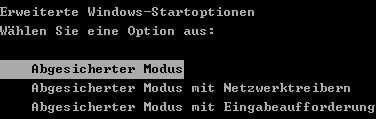
2. b) Now click with the right mouse button on the Workplace (see Start menu) and select Properties. Switch to Hardware and open the Device Manager. Now expand DVD/CD-ROM drives or Drives (Hard disks), right-click on the problematic entry and select Uninstall. After a restart (in conventional mode), the drives mount themselves again automatically.
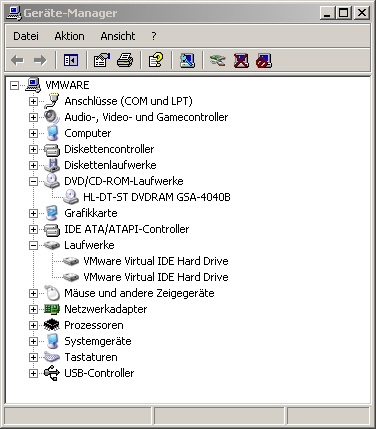
3. Test-drive the manufacturer’s website (or search for it on Google.de) for your devices and try to obtain a newer driver (e.g., starting from August 2004, Service Pack 2 release) and install it.
Windows XP SP 2 - Re-implement external drives
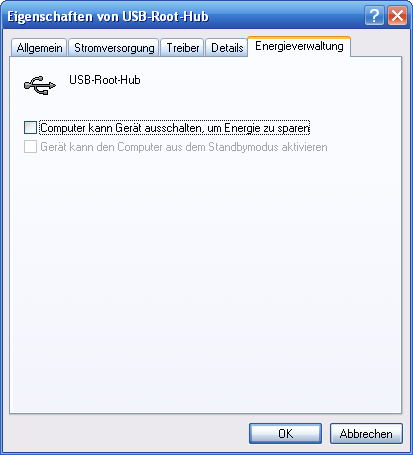
4. Service Pack 2 has problems with the power management of some external devices: Open the Device Manager again and open each entry with the name "USB root hub under "USB controller. Remove at "Energy management the check mark in front of "Computer can switch off device to save energy.
5. Since Service Pack 2, write protection has been implemented for external drives, which can be used in companies, for example, to prevent data from being stolen. Unfortunately, this write protection also prevents the correct display of the devices in the workstation or in various applications in some cases. Click on "Start/Execute and tap "regedit in. Open the path "HKEY_LOCAL_MACHINE\System\CurrentControlSet\Control\StorageDevicePolicies and double-click on "WriteProtect. Enter a "0 and confirm with "OK.
Note: If the key is not available, create a new key under "HKEY_LOCAL_MACHINE\System\CurrentControlSet\Control a new key called "StorageDevicePolicies (right-click, "New/key). Now click in the right-hand pane, select "New/DWORD value and call this "WriteProtect. Now enter the "0 confirm with "OK and restart your computer.
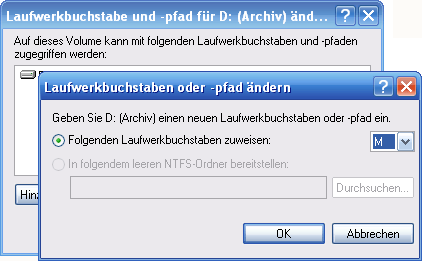
6. It is possible that the drive letter is already assigned. Click on "Start/Execute and enter "diskmgmt.msc and right-click on the external drive. Select "Change drive letters and paths. Click on the button "Change. Look for yourself at "Assign the following drive letter select a higher letter (e.g. M) and confirm. The devices should be displayed again after a restart at the latest.
7. Use the Registry Editor to open the path "HKEY_LOCAL_MACHINE\SOFTWARE\Microsoft\Windows\CurrentVersion\policies\Explor er and make sure that there is no value named "NoDrives exists.
You can also hide drives via TweakUI (Download) or make it visible again. To do this, install and start the tool. Click on "My Computer/Drives and make sure that all drive entries are marked with a checkmark.
NOTE FOR NEW PUBLICATION: This article was produced by Sandro Villinger and comes from the Windows Tweaks archive, which has been built up since the late 1990s.

On Windows Tweaks you will find time-saving tech guides for PC, software & Microsoft. For a stress-free digital everyday life. Already We have been tweaking Windows since 1998 and just don't stop!


 Deutsch
 English