


Quick overview:
The graphics card with all its memory chips and processors is responsible for everything you see on your screen at home. It converts the incoming computer signals into monitor-compatible data. A special driver is required so that all functions can be used. Unfortunately, Windows XP only offers standard versions of the drivers, which often do not provide the optimum performance. Resolution, Refresh rate or Color depth The solution to all problems is to install an up-to-date driver for your graphics card.A list of all graphics card manufacturers and direct addresses for obtaining drivers can be found here.
The downloaded drivers will be delivered to your home as an executable program or as a .ZIP file, which you can install with programs such as WinAce 2.11 can be unpacked. While the former case consists of a few mouse clicks, the latter is somewhat more complicated. We will now describe the installation of the graphics card driver if you have only received a few files without an installation program:
1. Right-click on the desktop and select from the context menu Properties from.
2. A new window appears in which you can click on Settings and then immediately to Extended go.
3. As soon as the next window opens, open the tab Graphics card forward and select Properties.
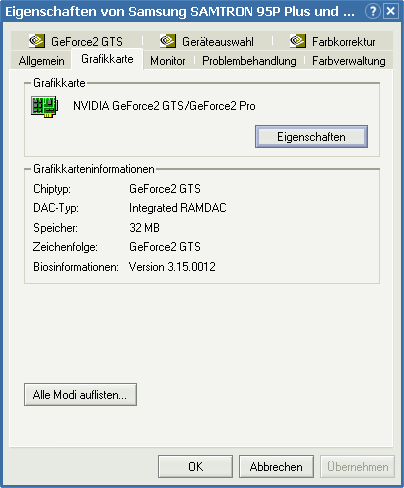
4. A new window appears - switch to Driver and click on the button Refresh. The driver wizard starts immediately with a query, which you can answer with Install software from a specific list or source confirm.
5. Select Search the following source as well and click on the head Browse.
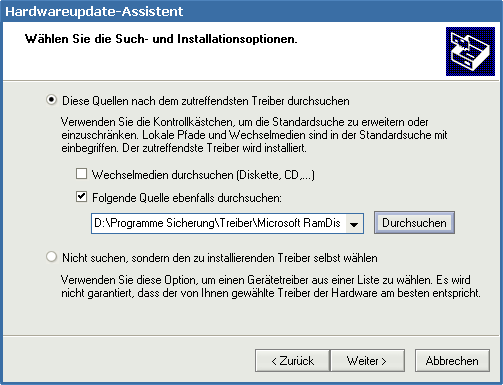
6. A new window with an Explorer section will appear immediately. Now navigate to the unzipped folder with the driver files and select it. As soon as the button OK below becomes free, you can click on it. The driver is recognized and a further query is necessary until the installation can be completed with a restart.
Read this additional article to find out how to get more out of it: The optimal settings for your graphics card - tips for the perfect picture.
Now that you have had enough of the optical gimmicks, you can move on to the next instructions, which deal with the installation of the sound card.

On Windows Tweaks you will find time-saving tech guides for PC, software & Microsoft. For a stress-free digital everyday life. Already We have been tweaking Windows since 1998 and just don't stop!

 Deutsch
 English