Quick overview:
There have been rumors about the defragmentation program integrated in Windows 2000 and XP for quite some time, accusing it of having some security flaws. If you want to be on the safe side and use a third-party program, follow my instructions to delete the integrated version. You should back up your system beforehand, as there are risks involved in this procedure. In most cases nothing happens, but it is not recommended.
Step 1 - Create a backup of the registration database
You need to save some keys in the registry. Open Regedit (Start > Execute and regedit type in).
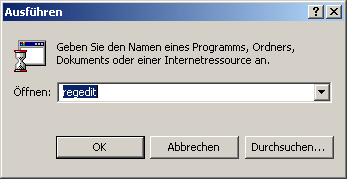
Go to the following keys one after the other and secure each one (File > Export > Selected substructure). The individual keys are then saved as a file somewhere (wherever you want).
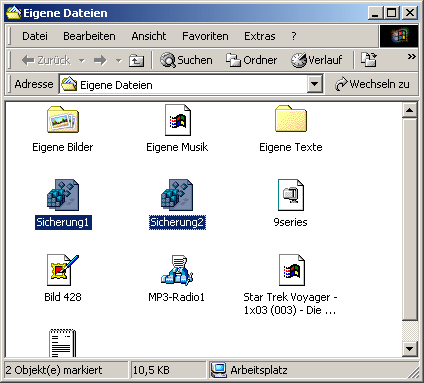
Do not forget where these are located. You will need them later:
HKEY_LOCAL_MACHINE \SOFTWARE\Microsoft\Windows NT\CurrentVersion\SourcePath
HKEY_LOCAL_MACHINE\SOFTWARE\Microsoft\Windows NT\CurrentVersion
Step 2 - Remove defragmentation files from the SYSTEM32 folder
Now you must delete the main files of the defragmentation program. To do this, click in succession on Workplace > WINNT > SYSTEM32. Now search for the files
DfrgFat.exe
DfrgRes.dll
DfrgUI.dll
DfrgSnap.dll
DfrgNtfs.exe
and delete them all.
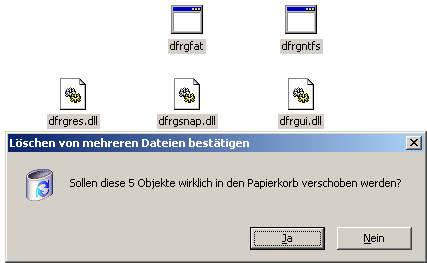
Step 3 - Remove defragmentation files from the DLLCACHE folder
Repeat the same process with the same files in the DLLCACHE folder, which is also located in the WINNT\SYSTEM32 directory. However, you must first make it visible. To do this, click in the Explorer on Extras > Folder options > View and remove the checkmark in front of Hide protected system files (Recommended). Confirm the following warning message with a clear conscience with Yes. Now go down further in the same window and select the option Show all files and folders.
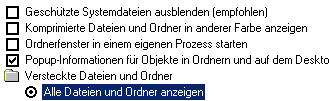
Now click on OK and double-click on the newly appeared folder DLLCACHE. Here you will find the above-mentioned files that need to be deleted. You can now undo the changes to the system and hidden files.
In some cases, a warning message appears, which you must first confirm with Cancel and then with Yes confirm.
Step 4 - Delete registry entries
Now open it via Start > Execute > regedit (type in) the Registry and delete the following key
HKEY_LOCAL_MACHINE\SOFTWARE\Microsoft\MMC\NodeTypes\ {476e644a-aaff-11d0-b944-00c04fd8d5b0}\Extensions\NameSpace\ {43668E21-2636-11D1-A1CE-0080C88593A5} by marking it and clicking on Removal Press . You confirm the message with Yes. Continue in exactly the same way with the following entries in the registry:
HKEY_LOCAL_MACHINE\SOFTWARE\Microsoft\Dfrg HKEY_LOCAL_MACHINE\SOFTWARE\Microsoft\Windows\CurrentVersion\ Explorer\MyComputer\DefragPath
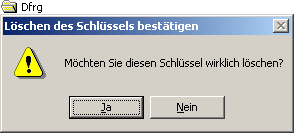
HKEY_CLASSES_ROOT\CLSID\{80EE4901-33A8-11d1-A213-0080C88593A5} HKEY_CLASSES_ROOT\CLSID\{80EE4902-33A8-11d1-A213-0080C88593A5} HKEY_LOCAL_MACHINE\SOFTWARE\Microsoft\MMC\SnapIns\ {43668E21-2636-11D1-A1CE-0080C88593A5}
HKEY_LOCAL_MACHINE\SOFTWARE\Microsoft\MMC\NodeTypes\ {476e644a-aaff-11d0-b944-00c04fd8d5b0}\Extensions\ContextMenu\ {43668E21-2636-11D1-A1CE-0080C88593A5}
Step 5 - Restore the previously backed up registry entries
Now go to the folder you selected for your backup under point 1 and restore all three values. To do this, simply double-click on the files!
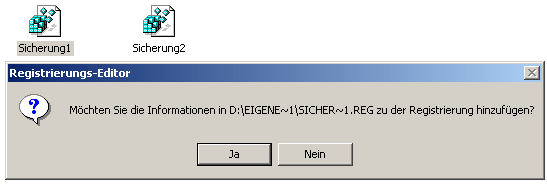
The procedure is now finally complete and you can restart your computer with peace of mind. You can also delete the start menu entry for the defragmentation program (not necessary). It is located under Start > Programs
NOTE FOR NEW PUBLICATION: This article was produced by Sandro Villinger and comes from the Windows Tweaks archive, which has been built up since the late 1990s.

On Windows Tweaks you will find time-saving tech guides for PC, software & Microsoft. For a stress-free digital everyday life. Already We have been tweaking Windows since 1998 and just don't stop!