


Quick overview:
Do you have a nice wallpaper and find that the icons only detract from the overall impression? With a few small, harmless tweaks to the system, your Windows could soon look like this:

To do this, you must go through the following instructions step by step:
1. Click here to view the Windows Tweaks TransDesk 98 package to download. After you have unpacked it using the ZIP function integrated in Windows, 3 files are available in the newly created folder.
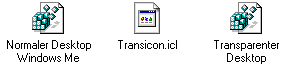
2. Select the file Transicon.icl and press CTRL+C. Now double-click under Workplace to the drive where your Windows 98 is installed. Now open the Windows folder and press CTRL+V to copy the file there. Once the file is in the Windows folder, you can switch to the TransDesk 98 folder.
3. Double click here on the file Transparent desktop and confirm them one after the other with Yes and then with Ok.
This file causes the new Transicon icon to be used for the My Computer, My Documents, Recycle Bin and Network Neighborhood icons. It also removes the arrows from the shortcuts. The changes are already visible after a restart. To undo these changes, simply click on the file Normal desktop click and everything is as it was before.
Also make the remaining symbols transparent
Now you just need to make the other desktop shortcuts of programs transparent. And this is how it works:
1. Right-click on a shortcut on your desktop, e.g.  and select Properties.
In the window that appears, click on Other symbol and choose now Browse. Now navigate to the Windows folder in which the Transicon.icl and double-click on it
2. Now repeat this step with all desktop shortcuts.
The background color of the symbol fonts must be transparent
To make the blocks behind the symbol fonts finally disappear, all you have to do is carry out the following tip: Transparent icons
Once you have applied everything as described, you should be standing in front of your long-awaited transparent desktop, which shows off the true splendor of your wallpaper.
NOTE FOR NEW PUBLICATION: This article was produced by Sandro Villinger and comes from the Windows tweaks archive, which has been built up since the late 1990s.

On Windows Tweaks you will find time-saving tech guides for PC, software & Microsoft. For a stress-free digital everyday life. Already We have been tweaking Windows since 1998 and just don't stop!
