


Quick overview:

Taking Screenshots in Windows XP with and without the Snipping Tool: If you need screenshots of Windows for presentations, help hotlines, or websites, nothing could be easier. Simply set up the desired view and press the Print Screen key on your keyboard. If you then click “Paste” in Paint, PhotoImpact, or Microsoft Word, for example, you’ll get an exact copy of the screen. But how do you take screenshots of windows in Windows XP? Which snipping tools are helpful? Here are instructions and screenshot tools for XP.
Screenshot under Windows XP with and without Snipping Tool
Sometimes the screen is overcrowded or only one window should be visible, e.g. the workstation.
In this case, in Windows XP you had to laboriously crop the screenshot to the desired window using an image editing program and save it.
In the long run, this is a waste of time, which I will put an end to with the following instructions.
But first the classic method of taking a Win XP screenshot.
Creating a screenshot in Windows XP (key combination)
- In Windows XP, open the applications you want to take a screenshot of.
- Press the [Print] or [Print Screen] key to save the screenshot to the clipboard.
- Now Paint or Word and open the screenshot with the Key combination Ctrl+V and save it on the PC.
Tip for professional screen printing:
Below is a list of screen-capture tools for Windows XP, including download links.
With snipping tools, screenshots can be created more conveniently (e.g. of a section) and edited more comprehensively.
There is no need to buffer and paste into another application.
Video tutorial: Taking screenshots in Windows XP without a snipping tool
Here is a video tutorial - with all the steps to take screenshots of the entire screen in Windows XP using only the on-board tools (i.e. without any additional snipping tools installed) or to take screenshots of windows of individual XP applications:
To create screenshots of a window under Windows XP
1. Open the desired window, e.g. the Internet Explorer version information (?/Info) and hold down the ALT key.
2. Now press the Pressure button and let go. Instead of a chaotic picture, which you took with the usual pushbutton...
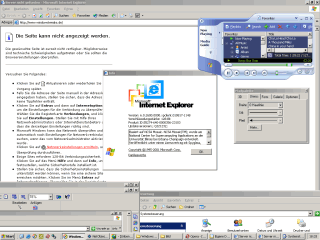
...you now have a window that has already been cleanly cut out.
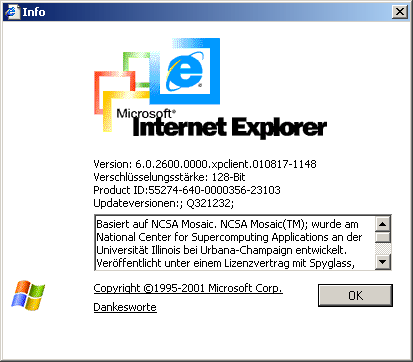
I hope you enjoyed this tip. It's nothing special, but for some people it saves time.
5 snipping tools for Windows XP PCs (incl. download links)

Yes, snipping tools are also available in abundance for good old Windows XP.
For example, Snipping Tool XP, Snipping Tool Plus, XPSnipping or the popular Greenshot tool, which also runs under Windows 10 and 11 and is widely used.
If you search for them in older Microsoft forums, you'll find great lists of Windows XP screen-capture tools—for example, in this old post on the Windows Server forum. However, some of them are "outdated," no longer work, or the pages where you can download the installation files are no longer accessible.
But some screenshot tools for Windows XP are still usable, here is a list of download links to try them out.
Snipping Tool Plus
This is the extended Plus version of the "Snipping Tool", which has been included in the Microsoft operating system since Windows Vista. The Plus version allows you to take, edit and crop screenshots under XP.
Click here to go to the Snipping Tool Plus download page on heise.de
Greenshot 1.2.10.6
The well-known screenshot software Greenshot also runs under XP, including the Greenshot Editor with many tools for editing Win-XP screenshots.
Download Greenshot here at heise.de
XPSnipping - Windows XP Snipping Tool
The Windows tool XPSnipping enables all the basic functions of the Windows 7 snipping tool on Windows XP PCs. This includes, among other things: Cropping screenshots, resizing and saving to the clipboard.
Click here to go to the XPSnipping download page on Codeplex
Snipping Tool XP 2.3
This screenshot tool for Windows XP was quite advanced due to the then new possibility of uploading screenshots to the cloud at the free image host Pic(k)Host (which no longer exists today).
Click here to go to the download page for Snipping Tool XP 2.3 on Chip.de
HP Smart Print
A tool for taking screenshots—even on paper: The official download page for the Hewlett-Packard Snipping Tool for Windows XP no longer seems to be working. But you can still download the tool from Computer Bild (though the reviews there aren't very impressive).
Click here to go to the HP Smart Print download page on Computer Bild
Movavi Screen Recorder
The Movavi Screen Recorder is an indispensable tool for effortless screen recording. It allows you to record either the entire screen or a user-defined area. In addition, you can capture your webcam, draw on videos in real time and highlight the mouse pointer and keystrokes.
Click here to go to the Movavi Screen Recorder download page
FAQ
How do I take a screenshot with Windows XP?
Press the [Print] or [Print Screen] button to save the screenshot to the clipboard. Now open Paint or Word and paste the screenshot using the key combination Ctrl+V. Then save the file to your PC.
Where to download a screenshot tool for Windows XP for free?
We have listed 5 free snipping tools for screenshots in Windows XP for you. Click on the respective link at the top of the article. On the download page, download the freeware to your PC. Then install, start and take screenshots.
NOTE ON REPUBLICATION: This article was written by Sandro Villinger, and the original version comes from the Windows Tweaks archive, which has been compiled since the late 1990s. Some of the content was updated in 2021.

On Windows Tweaks you will find time-saving tech guides for PC, software & Microsoft. For a stress-free digital everyday life. Already We have been tweaking Windows since 1998 and just don't stop!

 Deutsch
 English