


Quick overview:
The System Restore function integrated in Windows XP makes it possible to restore the computer at will. All you have to do is set a so-called system restore point. At a later point in time, it is possible to jump back to this point and thus eliminate possible errors. Unfortunately, this function requires some hard disk space.
So if you don't need them, you can switch them off completely:
1. To do this, click one after the other on Start > System control > System. Now switch to the tab System recovery.
2. Click in the white box in front of Deactivate system restore on all drives a check mark appears in front of it.
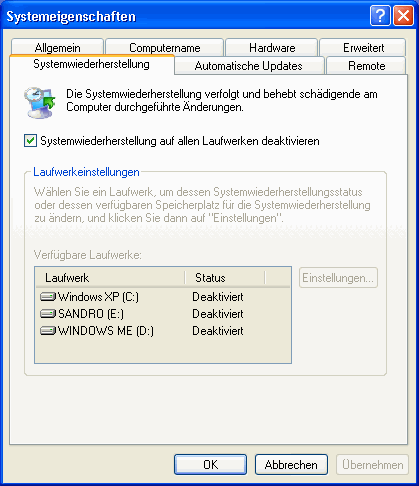
3. If they now work with OK confirm, the system restore is deactivated.
The alternative method (via the registry) can be used if, for example, the first method does not work:
1. Click one after the other on Start > Execute and type the command regedit in the command line. A program then appears that lets you use it like the conventional Windows Explorer.
2. Navigate through the keys by double-clicking HKEY_LOCAL_MACHINE\SOFTWARE\Microsoft\Windows NT\CurrentVersion\SystemRestore and right-click in the right-hand pane. From the context menu that now appears, select New > DWORD value. They baptize it with the name DisableSR.
3. Now double-click on your self-created value and enter a 1 inside.
After that, you will finally have peace of mind from the system recovery.
Note: If you are using Windows Server 2003, the key may be different. If the first path does not work, navigate to HKEY_LOCAL_MACHINE\SOFTWARE\Policies\Microsoft\Windows NT\SystemRestore and follow the instructions.

On Windows Tweaks you will find time-saving tech guides for PC, software & Microsoft. For a stress-free digital everyday life. Already We have been tweaking Windows since 1998 and just don't stop!

 Deutsch
 English