


Quick overview:
If your computer is constantly freezing, your games or applications are crashing or the famous blue screen of death is taking over your computer, good advice is expensive. In many cases, overheating problems with the Processors or the Graphics card is just as important as a not very powerful power supply unit (400 watts is recommended).
However, a defective RAM module can also cause such annoyances, which is why it is highly recommended that you have your existing RAM either replaced or limited. The latter only makes sense if you have two RAM modules. For example, a computer with 2 x 256 MB modules (512) can be limited to 256 MB to find out whether the second module is defective. If this is not the case, you should swap the modules immediately and then carry out this limitation again so that the second module can also be dragged to its check. And this is how you proceed:
Check working memory (RAM) for errors
1. Click in succession on Start/Execute. A dialog will appear shortly afterwards in which you can msconfig and press OK confirm.
The system configuration program opens and you immediately decide on Extended. Under Memory limitation to xxx MB Please enter the desired number, which in our example would be 256 MB for 512 MB RAM in 2 modules. Now confirm with OK.
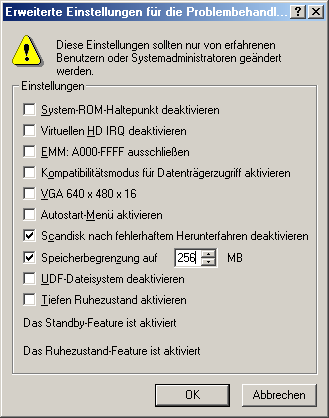
Now put your computer through its paces and check whether the crashes still occur. If not, then it is probably due to your installed RAM and you will be forced to upgrade your system with completely new memory modules, for better or worse.
However, if you have not found any errors with the first module, we advise you to remove the first module and install the other one in the second slot. Now use only the additional 256 MB (as in our example) and test it - if you have a third memory module, we recommend that you also test it.
NOTE FOR NEW PUBLICATION: This article was produced by Sandro Villinger and comes from the Windows Tweaks archive, which has been built up since the late 1990s.

On Windows Tweaks you will find time-saving tech guides for PC, software & Microsoft. For a stress-free digital everyday life. Already We have been tweaking Windows since 1998 and just don't stop!

 Deutsch
 English