


Quick overview:
Here is a trick you can use to make your Windows life a little easier. Every time you want to shut down the operating system, you have to take a detour via the Start menu. It would be easier to use a shortcut to switch off the computer by double-clicking on it. This is how it works:
1. Click hereto go to the main page of the manufacturer of the program Power Off 3.0 to get to the entry. Now use the scroll bar to scroll down until the entry Power Off 3.0.0.6 becomes visible. Load this file into a folder specified by you.
2. Now navigate to this folder and unzip the program with a suitable program, whereby we use www.winace.com recommend. Now a new folder called Pwroff30 which you open and right-click to open the context menu so that you can create a shortcut using the Create shortcut command, which you then move to the desktop.
4. Now double-click on your shortcut! You will now see several setting options.
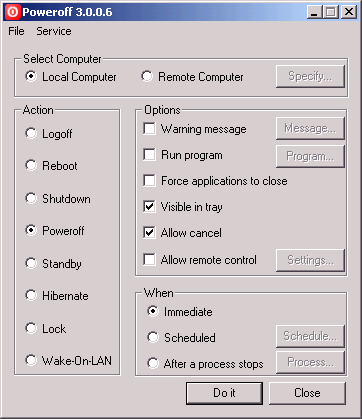
Under Select Computer, you can choose whether you want to shut down the PC you are using (local computer) or another computer in the network (remote computer). If you choose the latter, all you need to do is enter the required data, e.g. computer name and password.
The Action section offers you various options for shutting down:
- Logoff: The currently logged in user is logged out
- Reboot: Your PC is restarted
- Shutdown: Windows is shut down. However, you must switch off the PC yourself.
- Poweroff: The computer is shut down completely.
- Standby: The computer is set to energy-saving standby mode.
- Hibernate: As soon as you select this, the entire contents of the working memory are saved and written to the hard disk. The next time you restart, you can continue where you left off.
- Lock: The computer is locked here.
- Wake-On-LAN: This option allows you to start up a computer in the network. However, the computer must also support this function.
Under Options you will find a wide range of setting options:
- Warning message: Here you can display a message that appears as soon as the action is executed.
- Run program: As soon as you click on this and select a program installed on your computer, it will be started before you perform the selected action.
- Force Applications to close: All programs are closed immediately when the computer is shut down (or the action you have selected). This could cause data loss for critical programs. Example: A loaded Word file is not saved. Word is closed and your typed data is lost.
- Visible in Tray: If you minimize the Poweroff 3.0.0.6 program, it will be displayed in the taskbar next to the clock.
- Allow Cancel: Check this box to leave yourself the option of canceling the process (e.g. shutdown) in good time.
- Allow Remote Control: Another network computer is given the rights to switch your computer with PowerOff, e.g. to the Idle state to move.
In the When section, you will find several options for setting when the action should be carried out
- Immediate: If this is ticked, the action is executed immediately after you have clicked on the Do It button.
- Scheduled: Here it is possible to enter a predefined time for the desired action.
- After a process stops: You can select a program under this item. As soon as this program stops working, the action is executed. This is particularly useful for defragmentation or burning programs.
5. Once you have made the desired settings, all you have to do is click on Do it and everything is up and running
NOTE FOR NEW PUBLICATION: This article was produced by Sandro Villinger and comes from the Windows Tweaks archive, which has been built up since the late 1990s.

On Windows Tweaks you will find time-saving tech guides for PC, software & Microsoft. For a stress-free digital everyday life. Already We have been tweaking Windows since 1998 and just don't stop!

 Deutsch
 English