


Quick overview:
Accessing the Start menu requires two clicks—clicks you can save yourself if you’re willing to get a little technical. In fact, by creating your own script, you can switch to the familiar shutdown options with a double-click or a keyboard shortcut. Even though we’ve already shared a few other tips on this topic on our homepage, we’ve discovered this new option and don’t want to keep it from you. Here’s how to create your own WSH script:
1. Click with the right mouse button on New/text document and enter the following content in this file (new ActiveXObject("Shell.Application")). ShutdownWindows(); in.
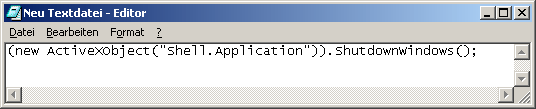
2. Click on File/Save as... and switch to File type to All files. Now enter the file name Shutdown.js and confirm.
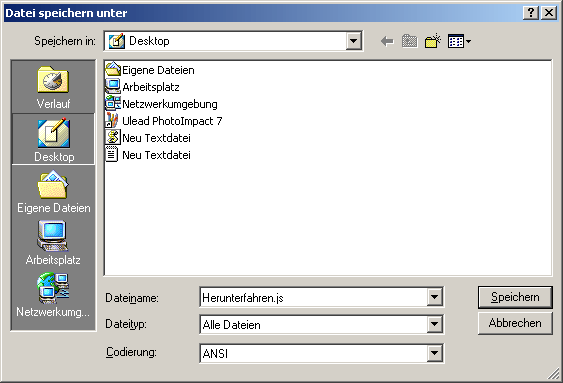
3. Now save this file to your desktop and double-click it to access the shutdown menu. We hope this tip was helpful! If you’d like to change the icon, move your custom file to a different directory and create a shortcut on the desktop. Then, right-click the shortcut and select “Properties” to choose any icon you like. For example, the red shutdown icon in the file C:\WINDOWS\system32\SHELL32.dll is perfect!
NOTE FOR NEW PUBLICATION: This article was produced by Sandro Villinger and comes from the Windows Tweaks archive, which has been built up since the late 1990s.

On Windows Tweaks you will find time-saving tech guides for PC, software & Microsoft. For a stress-free digital everyday life. Already We have been tweaking Windows since 1998 and just don't stop!
