


Quick overview:
If you still want to work with older programs or games at DOS level, it might be possible under the MS-DOS command prompt of Windows 98. In this case, switch them off via Start > Exit > Start computer in MS-Dos mode to the correct DOS. However, many applications simply refuse to work because they require more conventional working memory or even demand it. Some users are left in the lurch here, as they are understandably not familiar with DOS.
I will now explain how to optimize your DOS startup files to get your classics running. The tip is divided into 3 points. You can combine the first point with the second point to free up conventional RAM and XMS memory or combine the first and third points to free up conventional RAM and EMS memory.
1. free up more conventional working memory
In your DOS startup files, many device drivers or files are loaded into conventional memory (this is 640KB in size). However, since most DOS programs are also relatively hungry for this type of memory, you should move the drivers and cache options to the high memory area (called High Memory Area - it is 384KB in size), since hardly any program uses the entire high memory. To move almost everything from the conventional memory to the high memory area, open the files config.sys and autoexec.bat with an editor (under Windows) or enter the command edit config.sys resp. edit autoexec.bat in real DOS mode.

Edit Config.sys
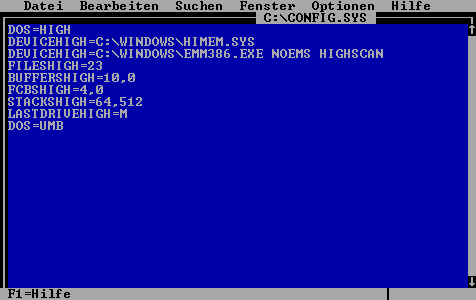
In this file you will probably see various lines that start with a DEVICE such as DEVICE=C:\WINDOWS\EMM386.EXE. Change all these DEVICE commands so that instead DEVICEHIGH it says. These drivers are now moved to the high memory area (therefore the HIGH). However, there are other commands in this file that are also significantly responsible for the memory load. Here you can see an optimally configured Config.sys file. Make sure that you copy exactly what is written here. Otherwise you may not be able to start your system. Now enter the following lines:
DOS=HIGH DEVICEHIGH=C:\WINDOWS\HIMEM.SYS DEVICEHIGH=C:\WINDOWS\EMM386.EXE FILESHIGH=22 BUFFERSHIGH=13,0 STACKSHIGH=0,0 FCBSHIGH=4,0 LASTDRIVEHIGH=Z DOS=UMB
If there are still device drivers in your Config.sys, e.g. from your mouse or CD-ROM drive, you should of course leave them as they are if you need them. But in any case enter DEVICEHIGH in front of the driver.
2. free up more XMS memory (Extended Memory System)
As described above, open the file Config.sys and change the line DEVICEHIGH=C:\WINDOWS\EMM386.EXE in DEVICEHIGH=C:\WINDOWS\EMM386.EXE NOEMS HIGHSCAN um.
3. free up more EMS memory (Expanded Memory System)
As described above, open the Config.sys file and change the line DEVICEHIGH=C:\WINDOWS\EMM386.EXE in DEVICEHIGH=C:\WINDOWS\EMM386.EXE RAM D=64 um.
Edit Autoexec.bat
This is an easier sub-catch. Simply enter the following letters before each device driver (you can see this, for example, in names that have something to do with CD-ROM or with mouse.sys) LH (stands for Loadhigh) in front of it. Save, restart and you're done
NOTE FOR NEW PUBLICATION: This article was produced by Sandro Villinger and comes from the Windows Tweaks archive, which has been built up since the late 1990s.

On Windows Tweaks you will find time-saving tech guides for PC, software & Microsoft. For a stress-free digital everyday life. Already We have been tweaking Windows since 1998 and just don't stop!

 Deutsch
 English