


Quick overview:
The swap file is the lifeblood of Windows. It steps in as a useful helper when RAM is running low. This can be caused by many complex applications or games being open at the same time. If you do not adapt this file to your personal requirements, you are wasting the performance potential of your computer. A poorly configured swap file slows down the system with unnecessary computing work. There is a rumor on the Internet that every swap file must be three times as large as the working memory, as warp speed. I have researched this topic intensively. This is how you set the swap file:
1. Click with the right mouse button on "Workplace" and select the entry "Properties". Now navigate through "Performance features" and "Virtual memory" until a window with the following content appears:
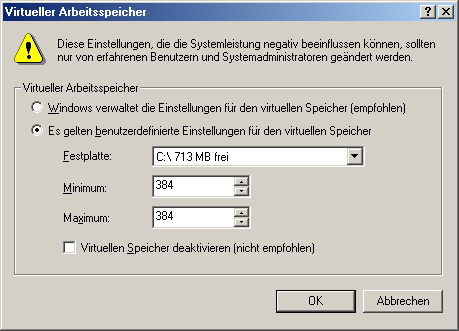
2. You are now faced with the selection of the hard disk on which the Swap file should be located. If you have several hard disks in your computer, you should always use the faster one to ensure fast access to the file in the event of storage bottlenecks. Find out more about hard disks and their speed here.
You will notice that Windows takes care of this itself and manages the settings itself. However, this is not exactly optimal, as the dynamic enlargement or reduction of the swap file requires more computing time. I therefore recommend entering the same Values in Megabyte after you have clicked on Es user-defined settings for the virtual memory apply have clicked.
Example: 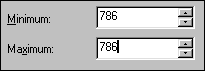
3. Now let's move on to the optimum size for your system. You need to think carefully about which of the three profiles you belong to.
Standard user: They mainly use the computer to work with office programs such as Word or to surf the Internet and receive e-mails. They also like to watch a movie after work or enjoy an older game of the caliber of Age of Empires, Settlers 3 or Final Fantasy 8. They never open more than 3-5 programs at the same time.
Minimum: 384MB
Maximum: 384MB
Player: They use their PC as a gaming station and, with high-quality high-end hardware, also have the necessary computing power for elaborate, complex and new games such as Aquanox or Elite Force. These games use huge textures, which quickly fill up the RAM and force Windows to swap out the rest of the system. The remaining components, such as map data, sounds, music, voice output or artificial intelligence, can also be very memory-intensive, which is why I recommend a very large swap file:
Minimum: 768MB
Maximum: 768MB
Pro: You constantly have several complex programs open at the same time and work with image, video and sound editing programs, which require at least 512 MB of RAM during operation. I spoke to a number of sound and video professionals who gave me advice on the optimum swap file. My own experience with image editing and many open programs such as web design applications, MusicMaker and complex games also influenced my choice of high-end user swap file:
Minimum: 1024MB
Maximum: 1024MB
After you have changed the values according to your profile, click Ok and restart the computer. Depending on your type of work, you will notice a significant performance boost.
NOTE FOR NEW PUBLICATION: This article was produced by Sandro Villinger and comes from the Windows tweaks archive, which has been built up since the late 1990s.

On Windows Tweaks you will find time-saving tech guides for PC, software & Microsoft. For a stress-free digital everyday life. Already We have been tweaking Windows since 1998 and just don't stop!
